If you have already finished TESDA training, and you wish to use the TESDA Biometric-Enabled Scholarship Registration System (TESDA BSRS), you will need your 13-digit Unique Learner Identifier (ULI)—your permanent TESDA learner number—to register as an existing scholar. You will also need to visit the BSRS portal and complete the registration procedures to connect all your past training history, scholarships, and enrollments under one identity and prevent duplicate or incorrect records into one secure system. After all, your ULI is your given during your first training so you can access transparent and organized technical education support without paperwork headaches.
By using your ULI for your TESDA BSRS registration, you are essentially linking your past TESDA training records to your new online account. It tells the system that you are an existing scholar, not a new applicant. It also allows TESDA to retrieve your previous enrollment, assessment, and scholarship data under one permanent learner number, while also preventing duplicate accounts and keeping your training history accurate and organized.
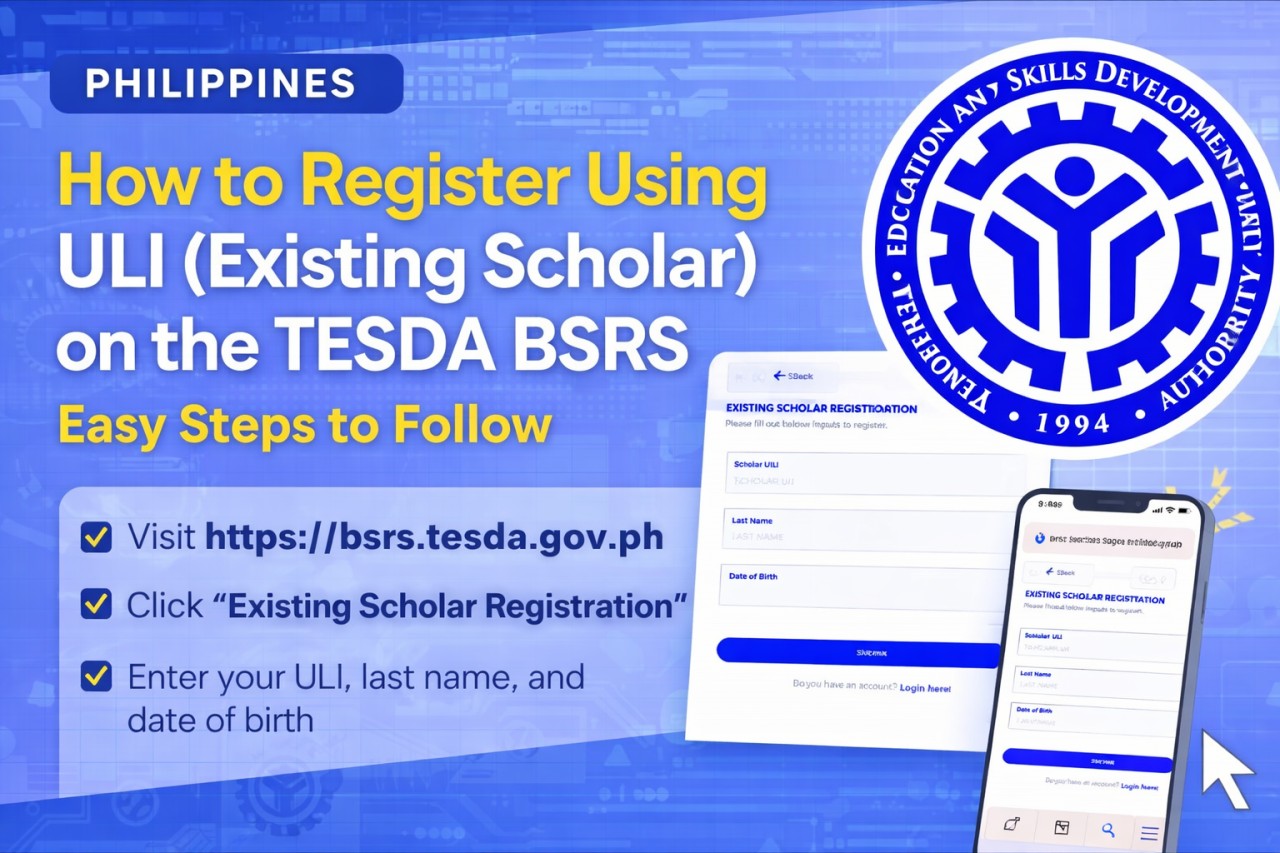
Using Your ULI on TESDA BSRS
With the creation of the TESDA BSRS—an online registration and monitoring system that uses facial recognition and digital tracking to protect scholarship slots—TESDA hopes to stop fake enrollees, incorrect records, and manual errors. The use of ULI simply reconciles already existing records prior to BSRS into one digital TESDA identity.
How to Register Using ULI (Existing Scholar)
If you are an existing scholar with a ULI but no BSRS account yet, simply follow these steps carefully:
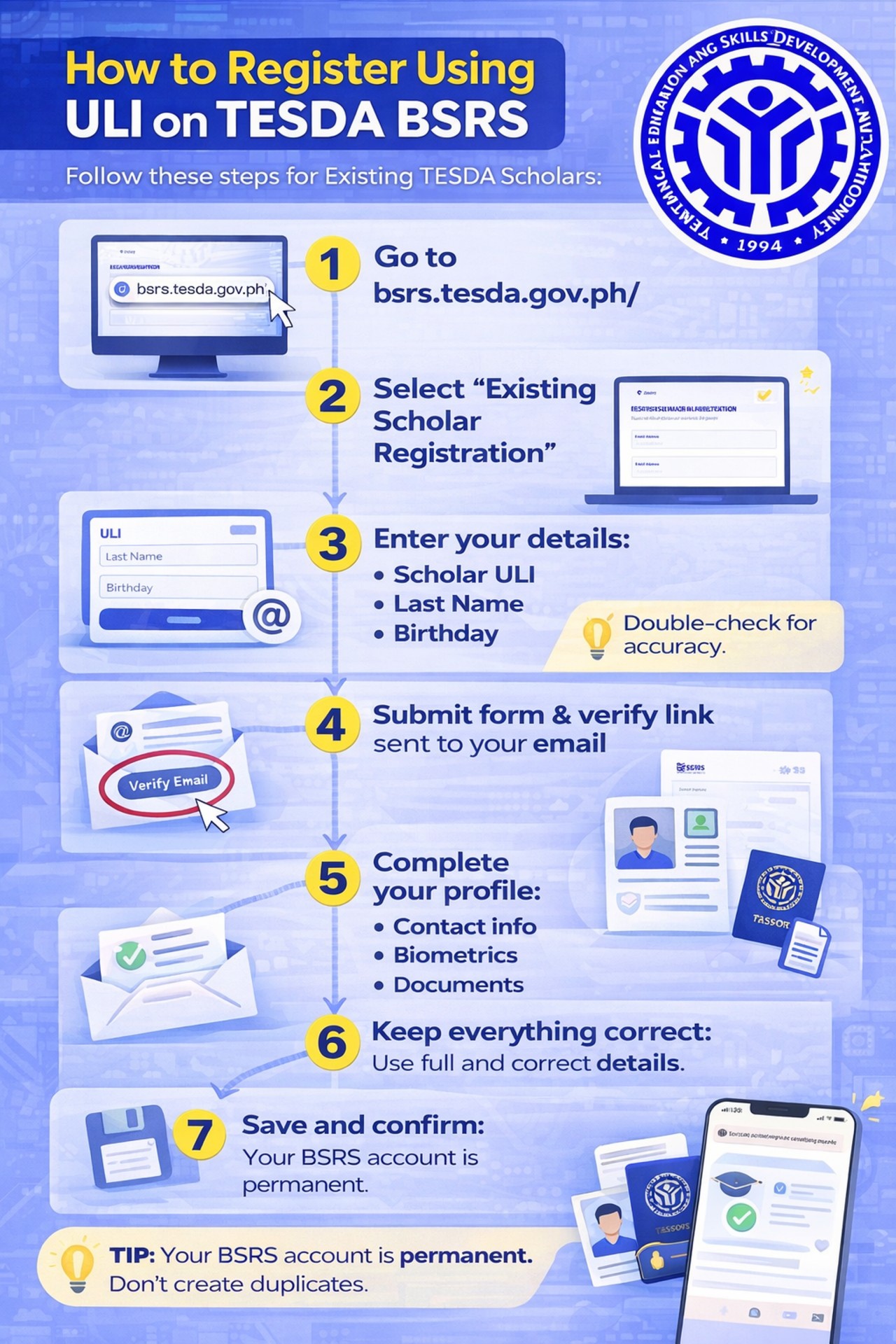
Step 1. Go to the Official Portal
- Visit: https://bsrs.tesda.gov.ph/
- Use Google Chrome for smoother access.
Step 2. Click “Existing Scholar Registration”
- Do NOT click “New Scholar” if you already trained before and have a ULI.
Step 3. Enter Your Details
- a 13-digit ULI
- Your Last Name (exact spelling in TESDA records)
- Your Date of Birth
- Double-check spelling. Even small mistakes can cause errors.
Step 4. Submit and Verify Your Email
- If your ULI is recognized, the system will ask for a working email address.
- Check your inbox (and spam folder).
- Click the verification link TESDA sends you.
Note: If you don’t have an active email, you will need to create one first. Remember: Do not forget your password.
Step 5. Complete the 9-Step Profile Registration
- After logging in, you must finish your profile:
- Personal Information
- Additional Profile Details
- Biometrics (take a live photo using your camera)
- Educational Attainment
- Household Classification
- Disability Information (if applicable)
- Upload Supporting Documents (Birth Certificate, Diploma, Valid ID, etc.)
- Program Selection (can skip if enrolling later)
- Accept Privacy Disclaimer
- Click Save where needed. You may skip Step 9 if instructed.
Common Registration Problems
If you are having trouble with the registration and you keep getting these error messages, then here’s what you need to do:
- Forgot your ULI? Contact the Registrar’s Office of the training center where you studied.
- System says your ULI is already used? You may need to contact your TESDA Provincial Office for correction or reset.
- Already have a BSRS account? Do not create another one. Your account is permanent.
How to Enroll After Registration
Once your TESDA BSRS account is complete, you can enroll via direct registration or through the scholar dashboard. Just make sure to keep these tips in mind:
- Use complete and correct information (name, birthday, address)
- Password must include capital letter, small letter, number, and symbol
- Prepare digital copies of required documents
- Keep your email and password safe
Registering as an existing scholar using ULI on TESDA BSRS is really just about linking your past TESDA records to your new digital account. With this system, you get to keep scholarship slots fair, your records organized and your TESDA training journey controlled. Remember: With every new course, your TESDA journey doesn’t restart. It continues.