Your TESDA Biometric Enabled Scholarship Registration System (TESDA BSRS)—an online system where scholars register, verify their identity, and track their scholarship information—account connects you to scholarship records and training participation in TESDA programs.
Losing access to it can delay enrollment verification or scholarship tracking so the Technical Education and Skills Development Authority (TESDA) has created it with a way to reset lost or forgotten BSRS passwords. So, if you forget your TESDA BSRS password, the good news is that it can be reset. The process is simple and can be done online in a few minutes, too and it also allows you to create a new password that follows TESDA’s security rules so you can log in again and continue using the system. This guide explains how to reset a TESDA BSRS password step by step, along with helpful tips in case you run into problems.
Resetting Your TESDA BSRS Password
TESDA has created the TESDA BSRS system to help keep track of scholarship registration and learner identity. With this system, scholars can register, verify their biometric information, and confirm their participation in TESDA programs. But because the system stores your training and scholarship details, your password is quite important as it protects your account and personal information. This is like the gatekeeper to your most important personal data so if you forget it, resetting it quickly helps you regain access so you can continue your TESDA training without delays.
Resetting your TESDA BSRS password is easy if you follow these steps:
Step 1. Go to the TESDA BSRS Login Page
Open the official TESDA BSRS website and proceed to the login page.
Step 2. Click “Forgot Your Password”
- Under the login box, you will see a link that says “Forgot Your Password.” Click it to start the reset process.
- You can also go directly to the password reset page here:
https://bsrs.tesda.gov.ph/password/reset
Step 3. Enter Your Registered Email Address
Type the email address connected to your TESDA BSRS account.
Step 4. Send the Password Reset Link
Click the “Send Password Reset Link” button. The system will send instructions to your email.
Step 5. Check Your Email Inbox
Look for a message from TESDA containing the reset link. If you do not see it in your inbox, check your Spam or Junk folder.
Step 6. Create a New Password
- Click the link in the email and follow the instructions to create your new password.
- Once done, you can log in again with your updated TESDA BSRS password.
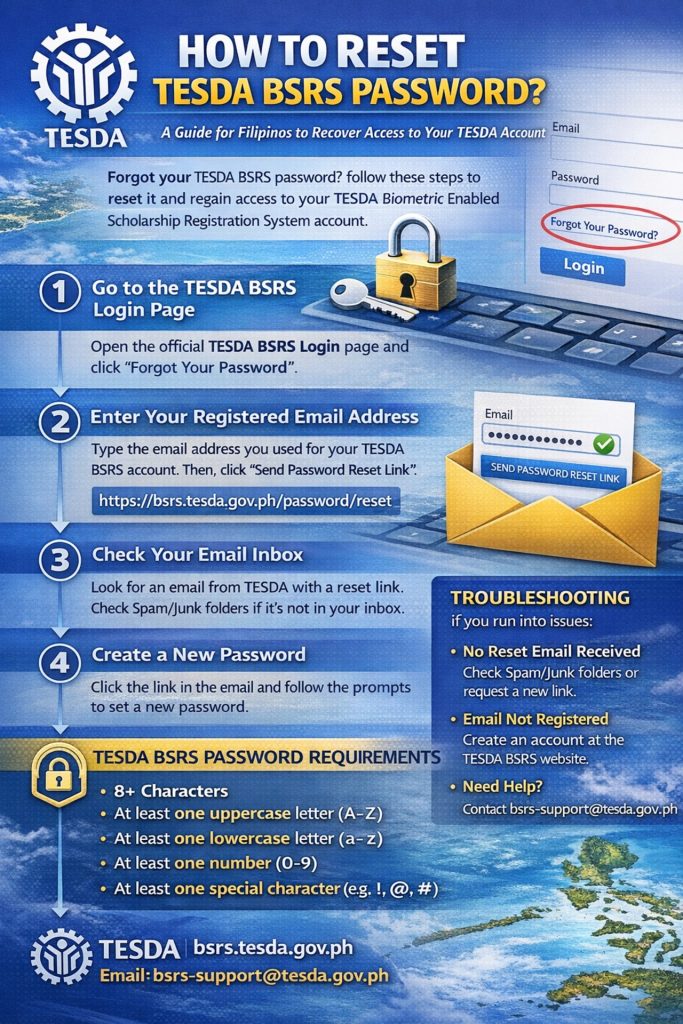
TESDA BSRS Password Requirements
When creating a new password, it must follow TESDA’s security rules:
- At least 8 characters long
- At least one uppercase letter (A–Z)
- At least one lowercase letter (a–z)
- At least one number (0–9)
- At least one special character such as !, @, or #
These requirements help protect your account from unauthorized access.
What to Do If You Cannot Reset Your Password
Sometimes users run into small issues during the reset process. Here are some of them along with a few simple solutions.
- If You Did Not Receive the Reset Email
First, check your Spam or Junk folder. If the email is still missing, request another reset link from the password reset page.
- If the System Says Your Email Is Not Registered
You may have entered a different email during registration. Try using another email you might have used for TESDA.
If you still cannot log in, you may need to create a new account.
- If You Need Technical Assistance
You can contact TESDA support for help with your account recovery. You may send an email to bsrs-support@tesda.gov.ph.
For many Filipinos across the Philippines, TESDA training is a stepping stone toward stable work, overseas employment, or starting a small livelihood. Access to your BSRS account helps keep that journey moving forward.