If you want your TESDA Online Program (TOP) course progress to appear on both the website and mobile app, simply log in using the same email and password on both platforms. When you are connected to the internet, your progress automatically updates between the web version at https://e-tesda.gov.ph/ and the TOP Mobile App.
If you study offline using the app, your completed lessons and quizzes will sync as soon as you reconnect to the internet and open the app. Look for the green cloud icon—that means your course progress has successfully synced. If it doesn’t update right away, you can use the built-in QR code feature to sync instantly.
Syncing TOP Progress Across Platforms
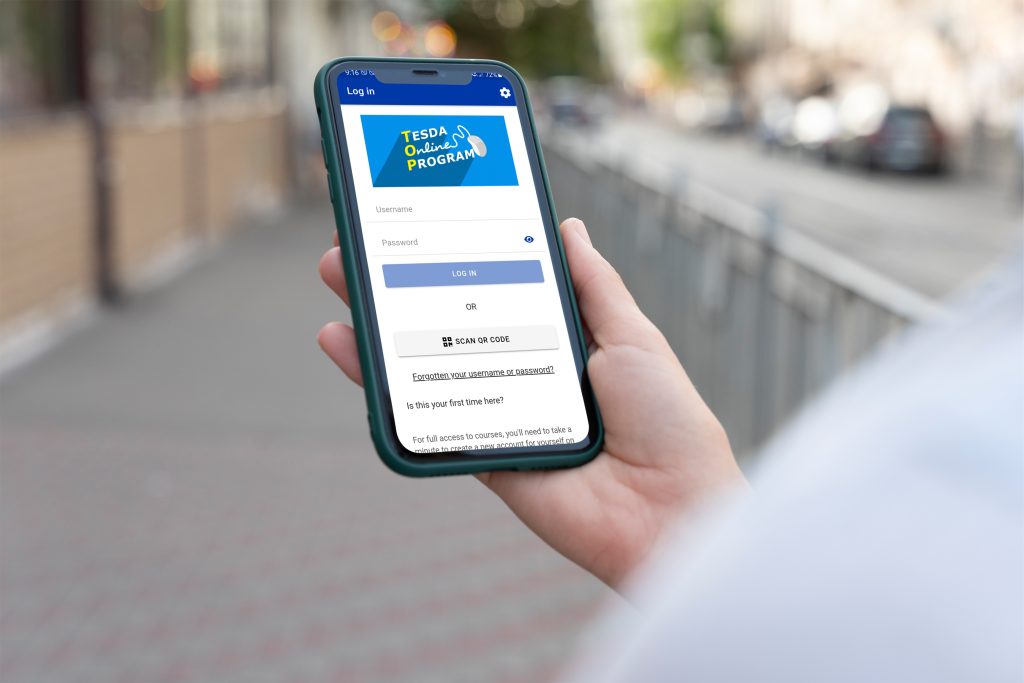
Because the target audience for the TOP courses are the busy OFWs, returning OFWs, out-of-school youth, working students, parents, and job seekers, the Technical Education and Skills Development Authority (TESDA) designed both the app and the website to sync your progress so it matches and you can just pick up where you left off, making it accessible to everyone, regardless of whether or not they have internet connection available.
How to Sync Your TESDA Online Program Progress
Here are different ways to sync your course progress across the various TOP platforms:
1. Use One Account Only
This is the most common mistake.
- Use the same email address and password
- Log in to both:
- Website: https://e-tesda.gov.ph/
- TESDA Online Program Mobile App
If you created your account on the website, use those exact details on the app. If you use different accounts, your progress will not match.
2. Automatic Sync (When Online)
When your device is connected to the internet:
- Open the app.
- Your progress automatically updates.
- The website dashboard will reflect your latest completed lessons and quizzes.
There’s nothing else you need to do. It works in the background.
3. How Offline to Online Sync Works
One of the best features of the TESDA Online Program mobile app is offline learning.
Here’s how to do it properly:
Step 1: Download the Course
- Open the app while connected to the internet.
- Go to your course.
- Click the three dots (upper right corner).
- Select “Download.”
Step 2: Study Offline
- Watch lessons.
- Answer quizzes.
- Complete activities—even without internet.
Step 3: Sync Your Progress
- Reconnect to the internet.
- Open the app.
- Wait for syncing to complete.
- Look for the green cloud icon—this means your module has synced successfully.
If you don’t reconnect, your progress stays saved on your phone only.
4. QR Code Method (For Faster Sync)
If your progress isn’t updating, try this:
Step 1. Log in to the web version.
Step 2. Go to: Dashboard > Profile > Details.
Step 3. Scroll to the bottom right and find the QR code.
Step 4. Open the app and select “Scan QR Code.”
This connects your browser session to your mobile app instantly.
Device Requirements
To avoid syncing problems, make sure your device meets the app requirements:
- Android 5.1+ or iOS 11.0+
- Enough storage space
- Updated app version
- Stable internet connection when syncing
During scheduled system upgrades, syncing may temporarily pause.
Still Need Help?
If syncing still doesn’t work:
- Email: tesdaonlineprogram@tesda.gov.ph
- Tel: (+632) 8893-8297
- You can also visit the TESDA office near you.
Just make sure that you were using just one account, and that you tried to reconnect after your offline study, and you also watched out for the green cloud icon before reaching out to TESDA for technical support.